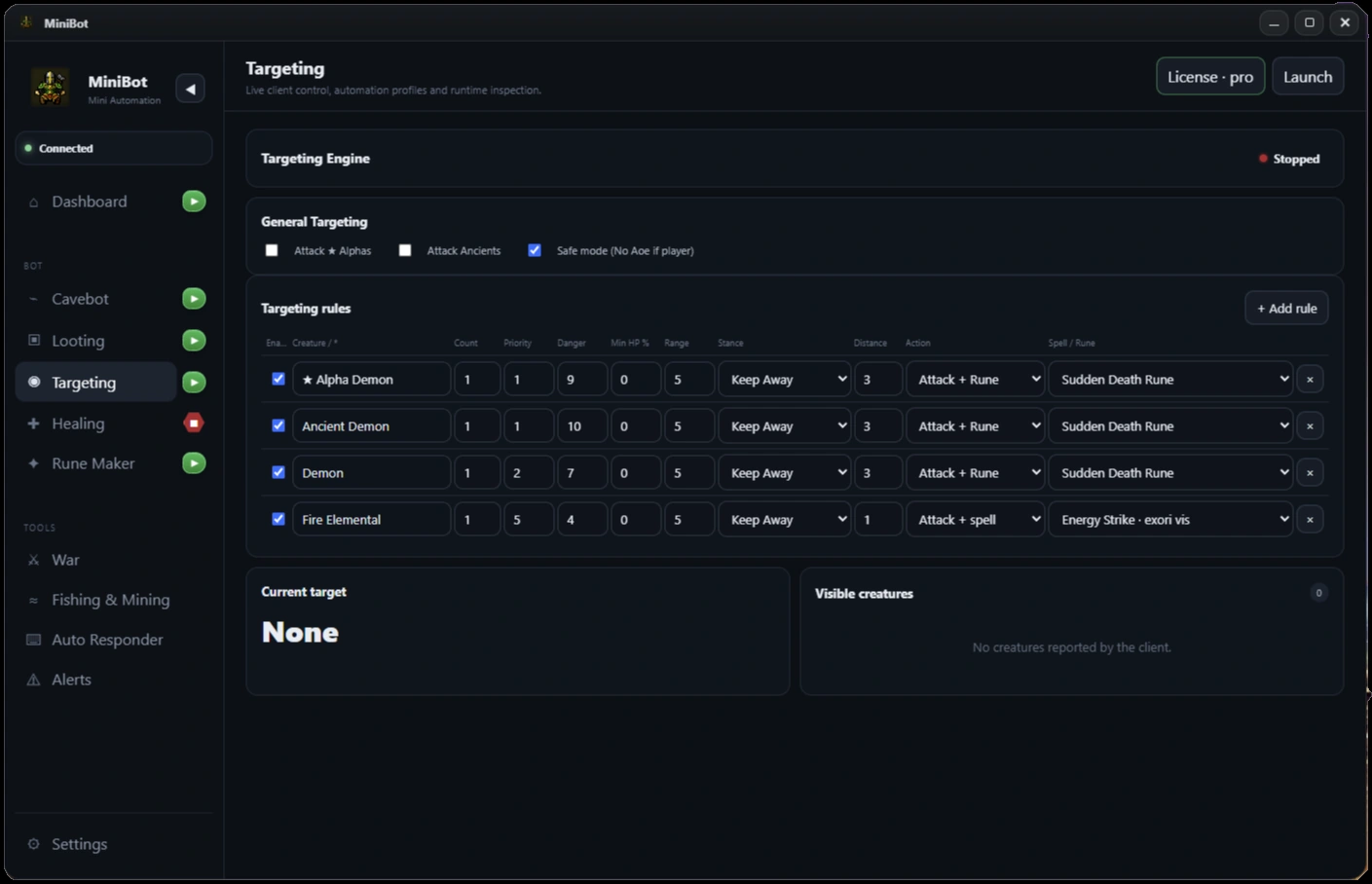
Begin with one creature rule
Open MiniBot’s Targeting tab and add a rule for one creature you can reliably encounter. Use its actual creature name, keep the conditions broad enough to match, and start with a basic attack action. Watch the Visible Creatures information and confirm that the rule selects the creature you intended.
Do not start by copying a dozen rules. One working rule tells you whether creature naming, range, action selection and target handoff are correct.
Choose priority, counts and range deliberately
MiniBot supports creature-specific rules, configurable target counts and priorities. Count-aware rules let you choose different behavior when one creature is visible compared with a group. Priority is useful when more than one rule could match the same situation.
- Keep the highest-priority rules limited to targets that need special treatment.
- Use count conditions only where group size should change the action.
- Choose a realistic range that matches your hunting area and line of sight.
- Test overlapping rules with the same set of creatures on screen.
Match action type to the situation
Targeting can coordinate attack-only rules as well as spell and rune actions. Use an explicit rule for each behavior you need, and confirm resource and cooldown requirements before enabling it on a route.
Check healing and mana recovery separately: those are different MiniBot systems. A target being recognized does not prove a selected spell or rune can be used in that exact moment.
Test movement stances with real obstacles
Reach, Hold and other configured movement choices affect how the character positions around a creature. Test a single stance at a time near typical hunt obstacles before mixing multiple stance-specific rules.
If the character selects the correct creature but moves unexpectedly, inspect stance and movement settings before changing name matching or rule priority. Keeping these responsibilities separate makes debugging faster.
Save rules with your hunt setup
After a successful test, save the relevant Cavebot and Targeting settings together where the interface supports it. Reopen the configuration and verify that count, priority, range, action and stance values are still correct.
Then combine Targeting with your Cavebot route. Run a supervised loop and watch the transitions between navigation, combat and looting instead of testing only the first attack.
Before you enable a longer session
- Verify the creature name against the visible list
- Start with one enabled rule
- Check priority, count and range overlaps
- Test the selected action and stance separately
- Save, reload and supervise a complete hunt loop
MiniBot is not affiliated with or endorsed by Minibia. Minibia’s published rules prohibit cavebotting and other non-native automation. Features may not work in every situation; review the game rules before use.